In today's tip of the day I'll show how to easily convert an OGV (Theora video) file to FLV (Flash video), for uploading to YouTube or other websites. You will need the ffmpeg audio and video encoder.
To convert an OGV file created by recordMyDesktop for example, all you have to do is issue a command like this:
ffmpeg -i input_file.ogv output_file.flv
You can shrink the size of the output file using something like this:
ffmpeg -i input_file.ogv -s 640x512 output_file.flv
This also reduces the size of the Flash video file.
To select a certain audio codec you can use something which goes like this:
ffmpeg -i input_file.ogv -acodec libmp3lame output_file.flv
Monday, 4 May 2009

Sunday, 3 May 2009
K9Copy - Powerful DVD Backup Tool for KDE4
K9Copy is a KDE application which allows to transcode and backup your DVDs. K9Copy is one of the big players when it comes to DVD transcoding, together with dvd::rip and AcidRip, allowing to encode DVD ISO images and mounted DVDs too.
It allows to copy DVDs without menus using dvdauthor, which, as the name suggests, is a tool that helps you create menus, buttons and chapters. K9Copy supports various video and audio codecs, including Xvid, x264, WMV 7 and 8, RealVideo, MP3, AC3 or AAC. It can be set to use either mencoder or ffmpeg for MPEG-4 encoding, allows 2-pass encoding (which is slower but performs an improved, constant quality encoding), and it also allows you to select the size and number of output video files.

It has no fewer than 4 preview modes which can be set in the configuration dialogue: the internal previewer, mplayer, Xine and Phonon.

One of the nice things about K9Copy is that it also provides the option to extract only the audio, which can prove very useful for a concert/videos DVD for example.
The configuration dialogue allows to change the default settings for MPEG-4 encoding, add devices, select the DVD size, enable/disable the use of dvdauthor and customise the buttons' colours, default audio tracks and subtitles, edit settings for video/audio codecs, select the preview mode, and change the paths for the tools which are used by it.

I think K9Copy is the most fit DVD transcoding and backup utility for KDE users. It has subtitle support, an easy to use interface, a preview mode and also dvdauthor inclusion.
Homepage
It allows to copy DVDs without menus using dvdauthor, which, as the name suggests, is a tool that helps you create menus, buttons and chapters. K9Copy supports various video and audio codecs, including Xvid, x264, WMV 7 and 8, RealVideo, MP3, AC3 or AAC. It can be set to use either mencoder or ffmpeg for MPEG-4 encoding, allows 2-pass encoding (which is slower but performs an improved, constant quality encoding), and it also allows you to select the size and number of output video files.
K9Copy 2.3.1

It has no fewer than 4 preview modes which can be set in the configuration dialogue: the internal previewer, mplayer, Xine and Phonon.
Encoding

One of the nice things about K9Copy is that it also provides the option to extract only the audio, which can prove very useful for a concert/videos DVD for example.
The configuration dialogue allows to change the default settings for MPEG-4 encoding, add devices, select the DVD size, enable/disable the use of dvdauthor and customise the buttons' colours, default audio tracks and subtitles, edit settings for video/audio codecs, select the preview mode, and change the paths for the tools which are used by it.
Settings

I think K9Copy is the most fit DVD transcoding and backup utility for KDE users. It has subtitle support, an easy to use interface, a preview mode and also dvdauthor inclusion.
Homepage
Firefox Tip: Browse the Web Only With the Keyboard Using MLB
Mouseless Browsing (or MLB for short) is a Firefox 3 add-on which will allow you to browse the web using only your keyboard, by adding an ID box for each link on the web page. If you used the access keys feature in Konqueror (by pressing Ctrl while in a web page) you will probably find MLB useful too. See a screenshot below for Konqueror's access keys:
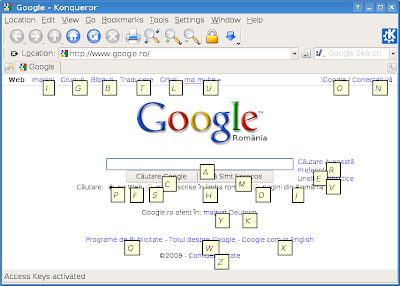
As you can see, by pressing the key corresponding to its link you can go directly to that link, just like if you pressed it with your mouse cursor.
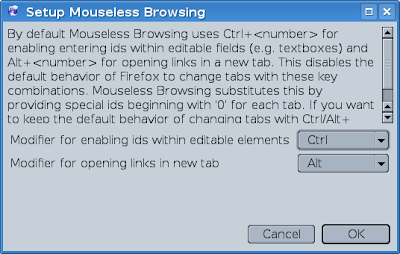
You will then be able to open links with Ctrl+ID_NUMBER and open links in a new tab with Alt+ID_NUMBER.
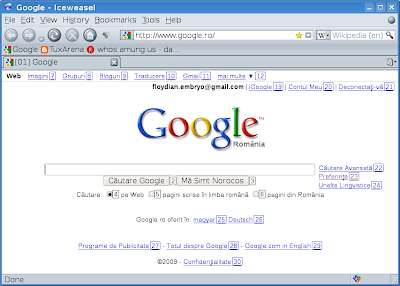
Notice that this add-on is useful only if you really need to use the keyboard for opening links, because it can turn a web page to look rather ugly with all those numbers lying all over the place. Here's how it looks by default:
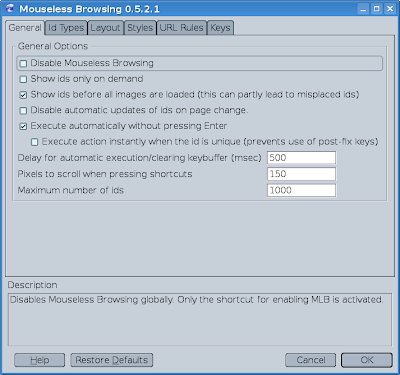
The good thing is that you can enable and disable it without the need to restart Firefox, directly from within the add-on preferences window.
Install Mouseless Browsing from the Mozilla Add-ons page
Homepage
Access keys in Konqueror

As you can see, by pressing the key corresponding to its link you can go directly to that link, just like if you pressed it with your mouse cursor.
MLB

You will then be able to open links with Ctrl+ID_NUMBER and open links in a new tab with Alt+ID_NUMBER.
Notice that this add-on is useful only if you really need to use the keyboard for opening links, because it can turn a web page to look rather ugly with all those numbers lying all over the place. Here's how it looks by default:

The good thing is that you can enable and disable it without the need to restart Firefox, directly from within the add-on preferences window.

Install Mouseless Browsing from the Mozilla Add-ons page
Homepage
How-To: Configure Bash to Show Some Info and Greet the User When Invoked
In this tutorial I'll show how to add some message (or run whatever application, echo whatever text you wish) when you start Bash in a terminal application like GNOME Terminal or Konsole.
When Bash is started in interactive way it will execute the commands found in ~/.bashrc, where ~ is you home directory. This file usually contains the PS1 variable (which holds the way the prompt looks like (by default this is user@host in most distribution), aliases, instructions to execute the /etc/bash_completion and ~/.bash_aliases files if found etc.
In order to show some message when Bash starts we will add the commands we want executed at the end of this file, so edit it with your favourite text editor, e.g. nano ~/.bashrc and add something like this:
fortune
This command will echo some random quote from a database which has over 15.000 quotes. Notice that you will have to install the fortunes package, in example on a Debian system type as root:
apt-get install fortunes
You can add any command you want executed to ~/.bashrc, for example I have those:
echo -ne "Hello, $USER! Today is $(date).\n\n"
cal
echo -ne "System Info: $(uptime)\n\n"
echo -ne "Fortune of the Day:\n"
/usr/games/fortune
Here's a screenshot of the output for those commands:

As you can see, first it echoes a message to the currently logged in user, it shows the date, invokes the cal application which will display a calendar, it shows the system uptime and then echoes a quote using the fortune game.
When Bash is started in interactive way it will execute the commands found in ~/.bashrc, where ~ is you home directory. This file usually contains the PS1 variable (which holds the way the prompt looks like (by default this is user@host in most distribution), aliases, instructions to execute the /etc/bash_completion and ~/.bash_aliases files if found etc.
In order to show some message when Bash starts we will add the commands we want executed at the end of this file, so edit it with your favourite text editor, e.g. nano ~/.bashrc and add something like this:
fortune
This command will echo some random quote from a database which has over 15.000 quotes. Notice that you will have to install the fortunes package, in example on a Debian system type as root:
apt-get install fortunes
You can add any command you want executed to ~/.bashrc, for example I have those:
echo -ne "Hello, $USER! Today is $(date).\n\n"
cal
echo -ne "System Info: $(uptime)\n\n"
echo -ne "Fortune of the Day:\n"
/usr/games/fortune
Here's a screenshot of the output for those commands:

As you can see, first it echoes a message to the currently logged in user, it shows the date, invokes the cal application which will display a calendar, it shows the system uptime and then echoes a quote using the fortune game.
Saturday, 2 May 2009
Top 10 KDE4 Applications
Yakuake - Great terminal application
Yakuake is a very popular Quake-style terminal application which sits in the background unless it's invoked with the (default) F12 global shortcut. It can inherit Konsole's settings and it is probably the best alternative to Konsole. Just like Konsole, Yakuake supports full transparency effects, various colour schemes and backgrounds, middle-click paste and tabs. Definitely an essential tool.
Homepage

Amarok 2 - Probably the most popular Linux audio player (full review here)
Amarok's port to KDE4 was probably one of the most controversial releases in the last few months and it generated many discussions whether Amarok 2 took the right way. My answer: yes. Although Amarok 2 was initially stripped by major features (to mention a few: lack of equalizer, currently poor functionality), but instead it is a new ground for new features. It's true, Amarok 2.0.2 was effectively full of bugs (I'm sure not even the devs can argue against this), but the upcoming 2.1 release includes a new, customisable playlist which should please users which complained about it. Amarok 2 still misses a lot of features, but the good thing is that developers are aware of the needs of users and plan to implement them in future versions. Among the new features this wonderful player comes with are widget support, a completely rebranded playlist and interface (if you ask me, I like how the space is managed in the interface), support for many services like Last.fm, Magnatune, and several other music stores. Development advances at a fast pace and pretty soon I'm sure Amarok 2 will be what Amarok 1.4 was and even more.
Homepage

K3b - Arguably the best KDE burning application (full review here)
Even if it is currently in alpha, K3b has a port for KDE4 now. No new features available and the interface hasn't changed, but this is the ground for what is to come next. K3b is probably the most powerful and full-featured, open-source CD/DVD burning application on Linux.
Homepage

SMPlayer - Full-featured video player using Qt
Now that VLC comes with a Qt interface too, I guess this puts SMPlayer and VLC at the same level, but I opted for SMPlayer because I believe it has a more compact interface and it seems to me to be easier to use.
Although SMPlayer does not actually depend on KDE4 libraries, it's still a Qt 4 application, and one of the most powerful video players out there. Using the mplayer engine, SMPlayer is a very powerful, feature-rich and highly configurable video player, which can play any format around, including DVD ISO images or Matroska MKV videos. One of the great features SMPlayer has for a long time now is the ability to remember all the settings for a specific file (like the time position, video settings, window size and position etc). Very useful when you have to close the player, and then later you have to restart a certain video without the need to scroll to the last position in the video. SMPlayer has an interface which fits well with KDE4 and it allows to configure the shortcuts, it provides icon themes, subtitles support, video functions like rotate video, aspect ratio, or various filters.
Homepage

digiKam - Photo management application
digiKam is a popular photo management application which constitutes the perfect alternative to the closed-source application from Google, Picasa. Starting with version 0.10 it also has a KDE4 port too. digiKam organises your pictures and photographs into albums and collections and comes with a huge number of options and support for many digital cameras.
Homepage

Krusader - Powerful file manager
With a funny codename, Krusader 2.0 'Mars Pathfinder' was released on April 11 and it is the first Krusader version for KDE4. Krusader was always the first alternative to Konqueror back in the KDE3 days, and its twin-panel interface and powerful features can please any user looking for an advanced file manager for KDE4.
Homepage

KTorrent - Full-featured BitTorrent client (full review here)
A while ago I put up a full review of KTorrent for KDE4 here. KTorrent has come a long way and is a completely full-featured BitTorrent client, including various useful plugins, torrent information, rich configuration settings, ability to download only certain files in torrents, possibility to create your own torrents and much more. If you are a KDE user and you didn't give it a try, you surely need to.
Homepage

Gwenview - image viewer and editor
Gwenview is in a continuous development, with more features and improvements added with every new release. Plans for the upcoming 2.3 release of Gwenview include a redesigned places and history handling, which will now include an 'URL bag' (or 'recent URLs' as it will probably be called), so that whenever you start Gwenview to view an image on the web it will keep the address in the history for fast access afterwards.
Gwenview supports various image formats, has good KDE integration, it comes with a file browser and thumbnail previews. One of the features of Gwenview is the ability to use basic image manipulation plugins, which extend its functionality too.
Homepage

Kdenlive - wonderful video editor
Linux has several popular video editors praised by some and hailed by others, and those include Kino and Cinelerra. A newer alternative to those is Kdenlive, which in my opinion is just the perfect application for non-linear video editing in KDE. Kdenlive supports various video formats, includes video and audio effects, and it organises your work in projects. You can create, crop, delete and bassically manipulate videos easily in any way possible with the help of this application.
Homepage

SpeedCrunch - complex calculator
Maybe not an application which can compete with a video player or image management application, a calculator is still an essential tool for any desktop. SpeedCrunch is a complex calculator application built in Qt 4 and which also features a scientific mode.
Homepage

As you can see, I decided not to include applications which come by default with KDE, so you won't find applications like Kopete or Konsole here. Instead, this is a top of KDE4 applications which I consider most powerful and (probably) essential for any KDE4 user after installing a KDE-based distribution.
Noteworthy applications left out
Unfortunately I couldn't include several good programs either because they are currently in alpha state (due to porting to KDE4 libs) or they don't have a KDE4 version. Included here is Kaffeine, a Xine-based video player which is among the top KDE players, BasKet, an extremely nice notes-taking application and not only: BasKet comes with great features which allow you to build entire projects, not only take notes. KDevelop currently has a beta release of the KDE4 port too, and it is a powerful integrated development environment which allows to program KDE applications. To say nothing about KOffice, for which the first release candidate of version 2.0 was put out just last month. A powerful music editor for Linux is Rosegarden, which is a good KDE replacement for Audacity for example.
Updated: May 3, 2009
Yakuake is a very popular Quake-style terminal application which sits in the background unless it's invoked with the (default) F12 global shortcut. It can inherit Konsole's settings and it is probably the best alternative to Konsole. Just like Konsole, Yakuake supports full transparency effects, various colour schemes and backgrounds, middle-click paste and tabs. Definitely an essential tool.
Homepage
Yakuake

Amarok 2 - Probably the most popular Linux audio player (full review here)
Amarok's port to KDE4 was probably one of the most controversial releases in the last few months and it generated many discussions whether Amarok 2 took the right way. My answer: yes. Although Amarok 2 was initially stripped by major features (to mention a few: lack of equalizer, currently poor functionality), but instead it is a new ground for new features. It's true, Amarok 2.0.2 was effectively full of bugs (I'm sure not even the devs can argue against this), but the upcoming 2.1 release includes a new, customisable playlist which should please users which complained about it. Amarok 2 still misses a lot of features, but the good thing is that developers are aware of the needs of users and plan to implement them in future versions. Among the new features this wonderful player comes with are widget support, a completely rebranded playlist and interface (if you ask me, I like how the space is managed in the interface), support for many services like Last.fm, Magnatune, and several other music stores. Development advances at a fast pace and pretty soon I'm sure Amarok 2 will be what Amarok 1.4 was and even more.
Homepage
Amarok 2.0.2

K3b - Arguably the best KDE burning application (full review here)
Even if it is currently in alpha, K3b has a port for KDE4 now. No new features available and the interface hasn't changed, but this is the ground for what is to come next. K3b is probably the most powerful and full-featured, open-source CD/DVD burning application on Linux.
Homepage
K3b 1.65.0 alpha - first KDE4 port

SMPlayer - Full-featured video player using Qt
Now that VLC comes with a Qt interface too, I guess this puts SMPlayer and VLC at the same level, but I opted for SMPlayer because I believe it has a more compact interface and it seems to me to be easier to use.
Although SMPlayer does not actually depend on KDE4 libraries, it's still a Qt 4 application, and one of the most powerful video players out there. Using the mplayer engine, SMPlayer is a very powerful, feature-rich and highly configurable video player, which can play any format around, including DVD ISO images or Matroska MKV videos. One of the great features SMPlayer has for a long time now is the ability to remember all the settings for a specific file (like the time position, video settings, window size and position etc). Very useful when you have to close the player, and then later you have to restart a certain video without the need to scroll to the last position in the video. SMPlayer has an interface which fits well with KDE4 and it allows to configure the shortcuts, it provides icon themes, subtitles support, video functions like rotate video, aspect ratio, or various filters.
Homepage
SMPlayer

digiKam - Photo management application
digiKam is a popular photo management application which constitutes the perfect alternative to the closed-source application from Google, Picasa. Starting with version 0.10 it also has a KDE4 port too. digiKam organises your pictures and photographs into albums and collections and comes with a huge number of options and support for many digital cameras.
Homepage
digiKam 0.10

Krusader - Powerful file manager
With a funny codename, Krusader 2.0 'Mars Pathfinder' was released on April 11 and it is the first Krusader version for KDE4. Krusader was always the first alternative to Konqueror back in the KDE3 days, and its twin-panel interface and powerful features can please any user looking for an advanced file manager for KDE4.
Homepage
Krusader

KTorrent - Full-featured BitTorrent client (full review here)
A while ago I put up a full review of KTorrent for KDE4 here. KTorrent has come a long way and is a completely full-featured BitTorrent client, including various useful plugins, torrent information, rich configuration settings, ability to download only certain files in torrents, possibility to create your own torrents and much more. If you are a KDE user and you didn't give it a try, you surely need to.
Homepage
KTorrent

Gwenview - image viewer and editor
Gwenview is in a continuous development, with more features and improvements added with every new release. Plans for the upcoming 2.3 release of Gwenview include a redesigned places and history handling, which will now include an 'URL bag' (or 'recent URLs' as it will probably be called), so that whenever you start Gwenview to view an image on the web it will keep the address in the history for fast access afterwards.
Gwenview supports various image formats, has good KDE integration, it comes with a file browser and thumbnail previews. One of the features of Gwenview is the ability to use basic image manipulation plugins, which extend its functionality too.
Homepage
Gwenview

Kdenlive - wonderful video editor
Linux has several popular video editors praised by some and hailed by others, and those include Kino and Cinelerra. A newer alternative to those is Kdenlive, which in my opinion is just the perfect application for non-linear video editing in KDE. Kdenlive supports various video formats, includes video and audio effects, and it organises your work in projects. You can create, crop, delete and bassically manipulate videos easily in any way possible with the help of this application.
Homepage
Kdenlive

SpeedCrunch - complex calculator
Maybe not an application which can compete with a video player or image management application, a calculator is still an essential tool for any desktop. SpeedCrunch is a complex calculator application built in Qt 4 and which also features a scientific mode.
Homepage
SpeedCrunch

As you can see, I decided not to include applications which come by default with KDE, so you won't find applications like Kopete or Konsole here. Instead, this is a top of KDE4 applications which I consider most powerful and (probably) essential for any KDE4 user after installing a KDE-based distribution.
Noteworthy applications left out
Unfortunately I couldn't include several good programs either because they are currently in alpha state (due to porting to KDE4 libs) or they don't have a KDE4 version. Included here is Kaffeine, a Xine-based video player which is among the top KDE players, BasKet, an extremely nice notes-taking application and not only: BasKet comes with great features which allow you to build entire projects, not only take notes. KDevelop currently has a beta release of the KDE4 port too, and it is a powerful integrated development environment which allows to program KDE applications. To say nothing about KOffice, for which the first release candidate of version 2.0 was put out just last month. A powerful music editor for Linux is Rosegarden, which is a good KDE replacement for Audacity for example.
Updated: May 3, 2009
How-To: Compile and Install digiKam 0.10 in Debian Sid
digiKam is a popular photo management application for both KDE3 and KDE4. Starting with version 0.10, digiKam offers a KDE4 port too. Here are instructions on how to compile from source and install the latest release in Debian Sid.
1. Install the needed dependencies
First of all, install the tools needed for the compilation. Type as root:
apt-get install build-essential cmake
Get the KDE4 development libraries too:
apt-get install kdelibs5-dev
Now, install the development libraries needed to compile digiKam (that's only one line):
apt-get install libgphoto2-2-dev libkipi6-dev libexiv2-dev libkdcraw7-dev liblcms1-dev libtiff4-dev libpng12-dev libjpeg62-dev libjasper-dev
These should do it.
2. Download the source code
Next, download the tarball from the official website and uncompress it:
tar -xjf digikam-0.10.0.tar.bz2
3. Compile and install digiKam
Change the current working directory to digikam-0.10.0, then compile and install it using these commands:
cmake .
make
make install
The last one as root. This worked for me (I hope I didn't miss any dependencies, if so, please let me know.) DigiKam 0.10 should be now installed.
1. Install the needed dependencies
First of all, install the tools needed for the compilation. Type as root:
apt-get install build-essential cmake
Get the KDE4 development libraries too:
apt-get install kdelibs5-dev
Now, install the development libraries needed to compile digiKam (that's only one line):
apt-get install libgphoto2-2-dev libkipi6-dev libexiv2-dev libkdcraw7-dev liblcms1-dev libtiff4-dev libpng12-dev libjpeg62-dev libjasper-dev
These should do it.
2. Download the source code
Next, download the tarball from the official website and uncompress it:
tar -xjf digikam-0.10.0.tar.bz2
3. Compile and install digiKam
Change the current working directory to digikam-0.10.0, then compile and install it using these commands:
cmake .
make
make install
The last one as root. This worked for me (I hope I didn't miss any dependencies, if so, please let me know.) DigiKam 0.10 should be now installed.
Tip of the Day: Add an Existing User to an Existing Group
For this task we'll use the usermod command. From the manual page, modifies a user account. In the following example we add the user embryo to the group vboxusers (you have to be root in order to use usermod):
usermod -a -G vboxusers embryo
Notice that you can also add the user to several groups in one command:
usermod -a -G group0 group1 group2 embryo
Which will add user embryo to groups group0, group1 and group2.
The -a switch is used only with -G and means 'append the user to supplemental groups'. The -G switch specifies a list of supplemental groups to add the user to.
usermod -a -G vboxusers embryo
Notice that you can also add the user to several groups in one command:
usermod -a -G group0 group1 group2 embryo
Which will add user embryo to groups group0, group1 and group2.
The -a switch is used only with -G and means 'append the user to supplemental groups'. The -G switch specifies a list of supplemental groups to add the user to.
Friday, 1 May 2009
Herrie Short Guide & Overview - Minimalistic Audio Player for Console
Herrie is a small music player for console, based upon the ncurses interface. It features a simple interface with two panels, a playlist and a file browser. Herrie can play Ogg Vorbis and MP3 and also has AudioScrobbler (Last.fm) support.
The shortcuts are a little bit non-intuitive, but man herrie will clear that out. In order to enter a directory or go up one level you will have to use the right and left arrows because the Enter key doesn't seem to work. To add the currently selected directory/track in the file browser to the playlist hit a, and to start playing use x. The same shortcut is used for pausing playing. Here are some useful shortcuts (notice that they are case sensitive, so D will mean press Shift+D):
a - add current directory/filename to the playlist
x - start playing
c - pause/resume playing
v - stop playing
( - decrease volume
) - increase volume
/ - search for entries
n - search for next occurence
D - remove all entries in the playlist (clear playlist); you'll be prompted to do it
q - quit Herrie
You can also use the typical h, j, k and l keyboard shortcuts for browsing through the file browser.
Herrie will also add files which are not audio formats to the formats, this means whatever it finds in the directory added to the playlist.

The global Herrie configuration file is located in /etc/herrie.conf, while the user-specific configuration file can be manually created as ~/.herrie/config, where ~ is your home directory. You'll need it when setting the Last.fm username and password.
The good thing about Herrie is that it has Last.fm song submission support, which you can enable by editing (or creating if it doesn't already exist) the ~/.herrie/config file and adding the following two lines:
scrobbler.username=USER
scrobbler.password=PASS
Replace USER and PASS with yours. Herrie also has an XMMS-like playlist mode, which can be enabled by adding the next line inside ~/.herrie/config:
playq.xmms=yes
You can also run Herrie as herrie -x and get the same result.
One of the drawbacks of Herrie is that it won't read tags, not even for Ogg Vorbis files, so if your music collection has files which are called something like track01.ogg, track02.ogg and so on, that's what you'll get in the playlist too.
I must admit Herrie is a little unusual and definitely the most unintuitive console player I've ever tried when it comes to the way you have to use it (especially keyboad shortcuts), but it can be a viable alternative to players like cmus, mp3blaster or moc once you get used to it.
Related articles
CMus Review - A Great ncurses Music Player
Review: MOC, Text-Based Audio Player
Several Powerful Console Music Players for Linux
The shortcuts are a little bit non-intuitive, but man herrie will clear that out. In order to enter a directory or go up one level you will have to use the right and left arrows because the Enter key doesn't seem to work. To add the currently selected directory/track in the file browser to the playlist hit a, and to start playing use x. The same shortcut is used for pausing playing. Here are some useful shortcuts (notice that they are case sensitive, so D will mean press Shift+D):
a - add current directory/filename to the playlist
x - start playing
c - pause/resume playing
v - stop playing
( - decrease volume
) - increase volume
/ - search for entries
n - search for next occurence
D - remove all entries in the playlist (clear playlist); you'll be prompted to do it
q - quit Herrie
You can also use the typical h, j, k and l keyboard shortcuts for browsing through the file browser.
Herrie will also add files which are not audio formats to the formats, this means whatever it finds in the directory added to the playlist.
Usual interface of Herrie

The global Herrie configuration file is located in /etc/herrie.conf, while the user-specific configuration file can be manually created as ~/.herrie/config, where ~ is your home directory. You'll need it when setting the Last.fm username and password.
The good thing about Herrie is that it has Last.fm song submission support, which you can enable by editing (or creating if it doesn't already exist) the ~/.herrie/config file and adding the following two lines:
scrobbler.username=USER
scrobbler.password=PASS
Replace USER and PASS with yours. Herrie also has an XMMS-like playlist mode, which can be enabled by adding the next line inside ~/.herrie/config:
playq.xmms=yes
You can also run Herrie as herrie -x and get the same result.
One of the drawbacks of Herrie is that it won't read tags, not even for Ogg Vorbis files, so if your music collection has files which are called something like track01.ogg, track02.ogg and so on, that's what you'll get in the playlist too.
I must admit Herrie is a little unusual and definitely the most unintuitive console player I've ever tried when it comes to the way you have to use it (especially keyboad shortcuts), but it can be a viable alternative to players like cmus, mp3blaster or moc once you get used to it.
Related articles
CMus Review - A Great ncurses Music Player
Review: MOC, Text-Based Audio Player
Several Powerful Console Music Players for Linux
3 Ways to Record Your Linux Desktop
In this article I'll include three ways to screencast your Linux desktop with the help of recordMyDesktop, XVidCap and Istanbul. These three applications are included in every major distribution.
recordMyDesktop and frontends
recordMyDesktop has both a command-line interface and two frontends, a GTK and a Qt graphical frontend. You can run it in a console, do whatever stuff you want to record, then hit Ctrl+C to stop it and recordMyDesktop will create an out.ogv (Ogg Theora) video file in the current working directory.

If you need to customise the video settings for the screencast, you can do it either with the command-line tool or by using one of the graphical frontends. For example, to run the GTK application use gtk-recordmydesktop.

recordMyDesktop will allow you to create a screencast and choose the video and audio quality, frame rate, include or exclude window decorations and the mouse pointer. It's easy to use and will surely do its job in a few clicks.
Official website
XVidCap
XVidCap is another pretty good GTK-based recording application. The first thing which jumps into attention when starting XVidCap is a red rectangle which can be moved around and resized and which will allow you to record only a certain portion of the desktop.

XVidCap allows you to save the screencast as an MPEG or AVI format.
Official website
Istanbul
These are not the only applications with which you can make a screencast. Have a look at Istanbul too, which is included in the repositories of all the popular distributions. Although it is probably the easier to use of all three, I found Istanbul to be the slowest when it comes to response time (it looks like it takes forever to encode the video), so you'll have to bear with it. Just like recordMyDesktop, Istanbul saves the screencasts into the free Ogg Theora format.
Official website

Have some other cool applications or ways for creating screencasts? Please share them in the comments below.
recordMyDesktop and frontends
recordMyDesktop has both a command-line interface and two frontends, a GTK and a Qt graphical frontend. You can run it in a console, do whatever stuff you want to record, then hit Ctrl+C to stop it and recordMyDesktop will create an out.ogv (Ogg Theora) video file in the current working directory.
recordMyDesktop - GTK interface

If you need to customise the video settings for the screencast, you can do it either with the command-line tool or by using one of the graphical frontends. For example, to run the GTK application use gtk-recordmydesktop.

recordMyDesktop will allow you to create a screencast and choose the video and audio quality, frame rate, include or exclude window decorations and the mouse pointer. It's easy to use and will surely do its job in a few clicks.
Official website
XVidCap
XVidCap is another pretty good GTK-based recording application. The first thing which jumps into attention when starting XVidCap is a red rectangle which can be moved around and resized and which will allow you to record only a certain portion of the desktop.
XVidCap

XVidCap allows you to save the screencast as an MPEG or AVI format.
Official website
Istanbul
These are not the only applications with which you can make a screencast. Have a look at Istanbul too, which is included in the repositories of all the popular distributions. Although it is probably the easier to use of all three, I found Istanbul to be the slowest when it comes to response time (it looks like it takes forever to encode the video), so you'll have to bear with it. Just like recordMyDesktop, Istanbul saves the screencasts into the free Ogg Theora format.
Official website
Istanbul

Have some other cool applications or ways for creating screencasts? Please share them in the comments below.
Tip of the Day: Auto-Complete Web Addresses in Firefox
Firefox comes with with 3 keyboard shortcuts which will help you auto-complete the .com, .org and .net addresses in the location bar without the need of typing them. These are:
Ctrl+Enter - auto-complete .com address
Ctrl+Shift+Enter - auto-complete .org address
Shift+Enter - auto-complete .net address
For example, type google in the address bar, then Ctrl+Enter. Both www. and .com parts will be auto-completed.
Ctrl+Enter - auto-complete .com address
Ctrl+Shift+Enter - auto-complete .org address
Shift+Enter - auto-complete .net address
For example, type google in the address bar, then Ctrl+Enter. Both www. and .com parts will be auto-completed.
Subscribe to:
Posts (Atom)