Music player: Rhythmbox (full review here)
Alternative: Banshee (full review here)
Banshee is a feature-rich collection-oriented player which includes Internet services, cover manager, smart playlists, Last.fm integration, 10-band equalizer, tray icon, ratings, fullscreen mode, track metadata editor, support for radio and podcasts, plugins and play queue, to list only a part of them. The version which comes in Ubuntu Maverick is 1.8.0, but at the time of writing a new development version, 1.9.0, is available on the official website and can be easily installed using the Banshee daily builds PPA at Launchpad.
Runners-up: Exaile, Listen, Audacious, gmusicbrowser, Decibel Audio Player, Quod Libet, Foobnix, DeaDBeeF, Sonata, GMPC
Showing posts with label maverick. Show all posts
Showing posts with label maverick. Show all posts
Tuesday, 30 November 2010

Saturday, 27 November 2010
7 KDE Apps to Get After Installing Kubuntu 10.10 Maverick Meerkat
Yakuake - Quake-like terminal application - full review
This is a great replacement console for the default Konsole which ships with KDE and implicitly with Kubuntu. The great thing about Yakuake is that is uses a Quake-style show/hide function, which can be accessed by default using the F12 keyboard shortcut. Press F12 to show the terminal, do you work, then hide it again when you don't need it anymore. Yakuake supports profiles (which can be configured the same way like a Konsole profile), global shortcuts, allows to change default size and animation speed, it supports skins, transparency, start-up options (like start with window shown or hidden), transparency. Supported are also multiple tabs, which can be switched by pressing Shift+Right/Left Arrow.
Homepage
This is a great replacement console for the default Konsole which ships with KDE and implicitly with Kubuntu. The great thing about Yakuake is that is uses a Quake-style show/hide function, which can be accessed by default using the F12 keyboard shortcut. Press F12 to show the terminal, do you work, then hide it again when you don't need it anymore. Yakuake supports profiles (which can be configured the same way like a Konsole profile), global shortcuts, allows to change default size and animation speed, it supports skins, transparency, start-up options (like start with window shown or hidden), transparency. Supported are also multiple tabs, which can be switched by pressing Shift+Right/Left Arrow.
Homepage
Friday, 26 November 2010
Goggles Music Manager - Overview and Installation in Ubuntu Maverick
Goggles Music Manager (or GMM for short) is a music player written using the FOX toolkit, with support for Ogg Vorbis, FLAC, MP3, MP4, ASF and Musepack. FOX is a fast toolkit for creating graphical interfaces (another application which I reviewed in the past which uses FOX is Xfe - review here - a file manager for Linux).
Sunday, 19 September 2010
How-To: Install Dillo Web Browser in Ubuntu Maverick Beta
Dillo is a simplistic, minimal web browser built using the FLTK2 (Fast Light Toolkit) library, designed especially for a minimal load on resources. It is used successfully by various distributions out there that aim to stay small and fast (the last time I checked it was included in Damn Small Linux for example).
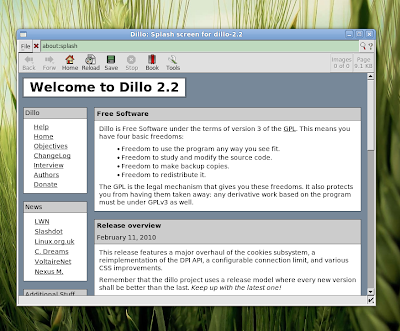
I decided to make a review of Dillo (in the past I reviewed version 2.0 here) but realized that currently Dillo is not included in the Ubuntu Maverick repositories. So this is why I set out to make first a short how-to on how to install it in Maverick. Considering you will also need to compile and install FLTK2 in order to compile Dillo (because the repositories include FLTK 1.1, but not FLTK 2.0), we will use a DEB package to install it. Just follow the steps below.
Download the DEB package from the Dillo PPA archive (direct link) and save it somewhere on your hard disk. Now open a terminal, make sure the currently working directory is the one where you saved it (use the pwd command to print the working directory) and type:
sudo dpkg -i dillo_2.2-0+dillo1~karmic1_i386.deb
That's it! To start Dillo, press Alt+F2 and type dillo in the run box that appears.
Note: This tutorial probably applies for older Ubuntu releases too.
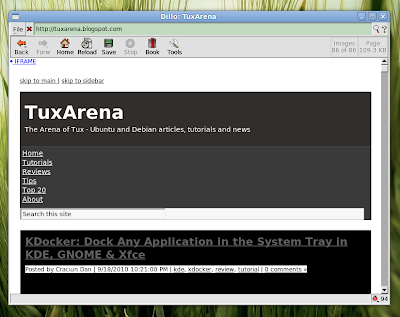
Dillo 2.2 - the minimalist and fast web browser for Linux

I decided to make a review of Dillo (in the past I reviewed version 2.0 here) but realized that currently Dillo is not included in the Ubuntu Maverick repositories. So this is why I set out to make first a short how-to on how to install it in Maverick. Considering you will also need to compile and install FLTK2 in order to compile Dillo (because the repositories include FLTK 1.1, but not FLTK 2.0), we will use a DEB package to install it. Just follow the steps below.
Download the DEB package from the Dillo PPA archive (direct link) and save it somewhere on your hard disk. Now open a terminal, make sure the currently working directory is the one where you saved it (use the pwd command to print the working directory) and type:
sudo dpkg -i dillo_2.2-0+dillo1~karmic1_i386.deb
That's it! To start Dillo, press Alt+F2 and type dillo in the run box that appears.

Note: This tutorial probably applies for older Ubuntu releases too.
Thursday, 16 September 2010
Tutorial: Install Clementine Music Player in Kubuntu 10.10 Maverick Beta
 Clementine is a KDE4 port of the beloved music player Amarok 1.4. Although Clementine still needs work done in order to reach Amarok's functionality - like support for scripts, or for example I couldn't get it to add a whole music directory to the playlist - is there a way to do it? - it comes with pretty decent features up to now:
- equalizer
- Last.fm song submission, love/ban buttons
- music library
- file browser
- radio support
- cover manager

Installing Clementine in Kubuntu 10.10 Maverick Meerkat Beta
We will use the packages in the Clementine PPA in order to install it on Maverick. Fire up a terminal and type:
sudo add-apt-repository ppa:riccetn/clementine
This command will add the Clementine PPA repository inside your /etc/apt/sources.list.d/ directory.

Notice that the current version in the PPA is 0.3. If you already have an older version of Clementine installed on your system, it is best to remove it first:
sudo apt-get remove --purge clementine
Now update the packages list:
sudo apt-get update
And finally, install Clementine by typing:
sudo apt-get install clementine
And you're done! To start it up, press Alt+F2 and type clementine followed by Enter.
Cover manager

Clementine Homepage
Clementine at Google Code
Clementine PPA at Launchpad.net
Subscribe to:
Posts (Atom)