recordMyDesktop - This is a powerful command-line screencasting application which uses open formats to save the obtaining video (Ogg Theora for video and Ogg Vorbis for audio). recordMyDesktop also provides GTK and Qt frontends, for both GNOME and KDE (the Qt version is not included in Ubuntu's repositories, but it can be downloaded from SourceForge).
Showing posts with label recordmydesktop. Show all posts
Showing posts with label recordmydesktop. Show all posts
Thursday, 16 December 2010

Saturday, 18 July 2009
How-To: Make a Screencast with recordMyDesktop
recordMyDesktop is a command-line tool which allows to record your entire Linux desktop and save it as a Theora Ogg video. It has GTK and Qt frontends too, and in Ubuntu gtk-recordmydesktop is available in the repositories. To install recordmydesktop in Ubuntu, just type in the GNOME Terminal:
sudo apt-get install recordmydesktop
And if you want the GTK frontend, use:
sudo apt-get install gtk-recordmydesktop
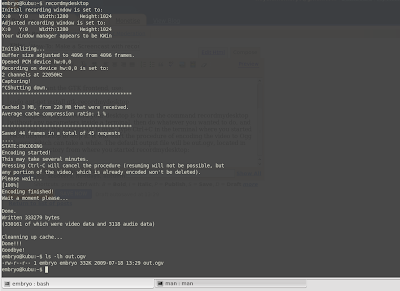
The simplest way to record your desktop is to run the command recordmydesktop without any parameters inside a terminal, then do whatever you wanted to do, and when you feel the screencast is over, type Ctrl+C in the terminal where you started recordmydesktop to stop it. It will start the procedure of encoding the video to Ogg Theora, which can take a while. The default output file will be out.ogv, located in the same directory from where you started recordmydesktop:
You can also choose the name of the output file:
recordmydesktop -o my_screencast.ogv
Or make it encode the video on-the-fly, so you won't have to wait after hitting Ctrl+C:
recordmydesktop --on-the-fly-encoding my_screencast.ogv
You can specify a region to record only:
recordmydesktop -x x_position -y y_position -width width -height height
Some other useful switches for recordmydesktop are:
-v-quality - video quality, from 0 to 63, default is maximum
-s-quality - sound quality, from -1 to 10, default is 6
-v-bitrate - video bitrate, from 45000 to 200000, default is 45000
-device - sound device
-channels - number of audio channels
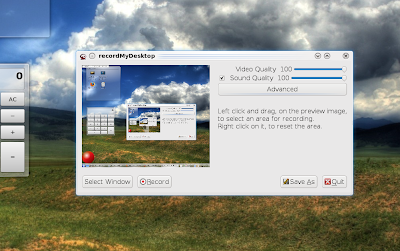
However there was a problem recording visual effects in Kubuntu, the resulted screencast having many artefacts.
sudo apt-get install recordmydesktop
And if you want the GTK frontend, use:
sudo apt-get install gtk-recordmydesktop
The simplest way to record your desktop is to run the command recordmydesktop without any parameters inside a terminal, then do whatever you wanted to do, and when you feel the screencast is over, type Ctrl+C in the terminal where you started recordmydesktop to stop it. It will start the procedure of encoding the video to Ogg Theora, which can take a while. The default output file will be out.ogv, located in the same directory from where you started recordmydesktop:

You can also choose the name of the output file:
recordmydesktop -o my_screencast.ogv
Or make it encode the video on-the-fly, so you won't have to wait after hitting Ctrl+C:
recordmydesktop --on-the-fly-encoding my_screencast.ogv
You can specify a region to record only:
recordmydesktop -x x_position -y y_position -width width -height height
Some other useful switches for recordmydesktop are:
-v-quality - video quality, from 0 to 63, default is maximum
-s-quality - sound quality, from -1 to 10, default is 6
-v-bitrate - video bitrate, from 45000 to 200000, default is 45000
-device - sound device
-channels - number of audio channels
gtk-recordmydesktop - GTK frontend

However there was a problem recording visual effects in Kubuntu, the resulted screencast having many artefacts.
Subscribe to:
Posts (Atom)